Reconciling a purchase
How to check your crypto trade history and fees
For a Binance spot purchase, open Trade History to check the price, quantity and fee; use Order History to check the order’s status. This guide covers the website, app and exports of older records.
- Checking the price you paid, the quantity, or the fee that came off it: open Trade History on the spot trading page and filter by date and pair.
- Wondering whether an order ever filled: Open Orders for anything still live, Order History for anything already finished or cancelled.
The balance on your assets page shows how much you hold now. To check the price and fee for a particular purchase, open its trade record. Everything below describes Binance spot trading. If you bought through the one-click buy flow, through Convert, or from another person on P2P, start with that product’s own order records.
Three tabs, and what each one holds#
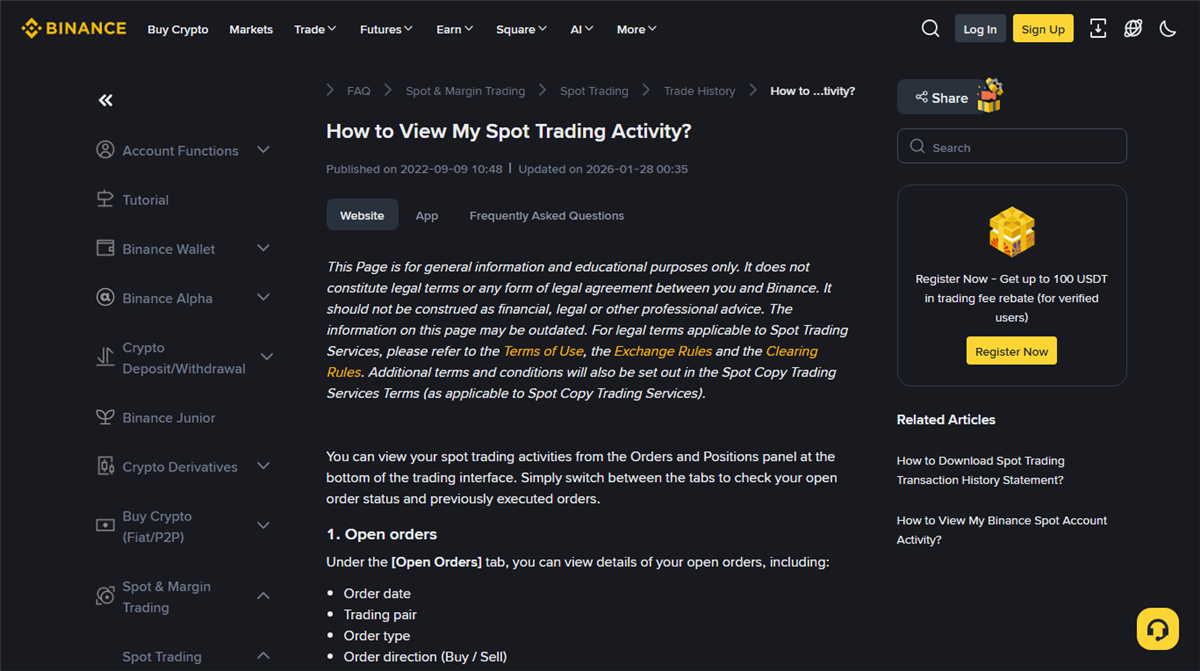
Binance calls the strip of tabs under the chart the Orders and Positions panel. Three of them matter for a normal purchase. Work out which one you are looking at before you start comparing numbers, because two of them look almost identical and mean quite different things.
| Tab | What it holds | Open it when |
|---|---|---|
| Open Orders | Orders still open, including partially filled orders with an unfilled remainder. Shows order date, pair, type, direction, price, amount and how much has filled so far. | You placed a limit order and it is still waiting — or you want to cancel it. The cancel control sits on the row itself. |
| Order History | Everything that finished over a period: filled, partly filled, cancelled. One row per order, each with a status. | You want to know how an order ended, not what it cost. |
| Trade History | The actual matches. Execution price, amount, the transaction fee, and whether you acted as maker or taker. | You are reconciling a purchase: price paid, quantity received, fee deducted. |
Two more tabs share the same panel — Funds, which mirrors your spot balances, and Grid Orders for the automated strategies. Neither has anything to do with checking a manual purchase.
For a single buy I open Trade History and nothing else. Order History only comes out when a trade appears to have vanished, which is what the section on rows not lining up, further down, is for.
Getting to them#
-
On the website, go back to the trading page you bought on
The one with the candlestick chart and the buy box. Scroll past the chart and the tab strip is sitting underneath it. If
Hide Other Pairsis ticked, Open Orders will only show the pair you are currently looking at, which is a good way to convince yourself an order disappeared. For the two history tabs, set the date range and the pair, then pressSearch. -
In the app, Trade then Spot, then the history icon
Open
Trade, chooseSpot, and tap the history icon on the right of the Open Orders section. From there you pick the Order History or Trade History tab and filter by date, pair and direction. Icon placement moves between app versions, so go by the labels rather than the position. -
Make sure you are looking at spot orders at all
Think back to what you actually tapped. The spot buy box, the one-click buy page, Convert and P2P are four separate products with four separate order records. A purchase made through the simple buy page will not appear in spot Trade History no matter how far back you scroll — you have to go to that product’s own order list.
Which number is the fee you actually paid#
The fee schedule gives you a percentage. Trade History gives you the amount that was actually taken out of one specific trade. For reconciling, only the second one counts.
On ordinary Binance spot trades the fee is usually deducted from the asset you receive. When you buy BTC and pay the fee in BTC, the net quantity received equals the executed quantity minus the BTC fee. For example, assume a purchase fills for 1 BTC and its fee is 0.001 BTC: net received = 1 − 0.001 = 0.999 BTC. These are illustrative inputs, not a quoted fee rate.
Read the currency next to the fee, not just the number. With BNB fee discount switched on, a sufficient BNB balance and an eligible trade, the fee can be charged in BNB instead — in which case it has not also been shaved off your BTC. Binance sets out the conditions in its note on using BNB to pay trading fees (checked September 2026). For how the separate layers of cost stack up, see what buying bitcoin actually costs.
The same row records whether you were maker or taker on that trade. It is useful for explaining why two trades were charged differently. It is not a promise that resting orders are always cheaper — your fee tier and the state of the book both come into it, and a limit order priced across the spread executes immediately as a taker. The difference between the two order types is covered in market or limit, which to use first.
When the rows do not line up#
One order, four rows
You placed a single order and Trade History shows three or four lines, each at a slightly different price. Nothing has gone wrong. To fill your order the system may match it against several resting orders on the book, and the help centre is explicit that those matches still count as one order. Add the quantities together and you get what you bought; on a partial fill that total will be less than the amount you originally asked for. Do not add the prices together — that number means nothing. If you want an average, divide total cost by total quantity.
Partly filled, then cancelled
Half of a limit order fills, you get impatient, you cancel the rest. Order History will mark that row cancelled, and the half that did fill is still yours — it is sitting in Trade History. A cancelled status does not mean nothing happened.
Never filled at all
An order that never matched anything appears in Order History and nowhere else. Trade History is a record of executions, so an order with no execution has no row there. Scrolling through it a fourth time will not produce one.
Pull together every trade belonging to that order first, then check which currency the fee was charged in. If it still does not reconcile, write down the quantity that is off and the records it came from.
Support tickets can carry the order ID, the timestamp and a screenshot of the relevant rows. Do not post a full transaction record publicly, and never send a password, a verification code or identity documents to anyone who asks for them.
Anything older than six months has to be exported#
Binance states in the same help article that order history in the interface is limited to the past six months, for security reasons, and that older records come out through the statement download instead. That is a Binance rule, not a general one — other platforms publish their own retention limits.
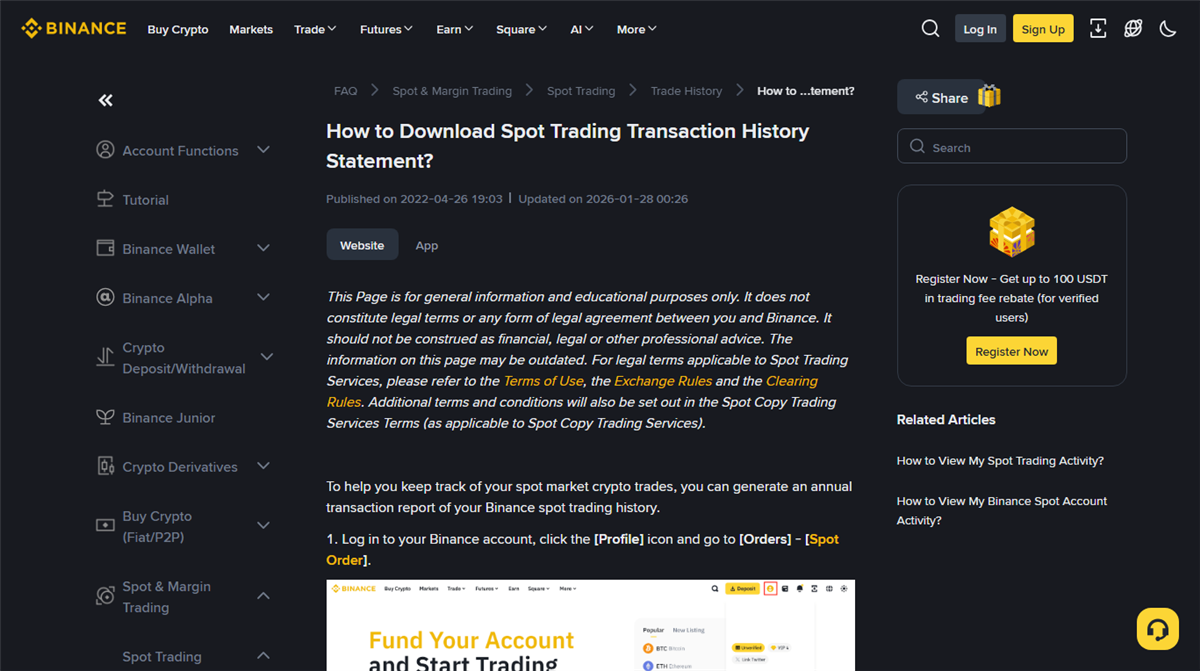
On the website: profile icon, Orders, Spot Order, then Trade History and Export Trade History. Choose All Time, set the start and end dates in the calendar, and press Generate. One statement covers up to a year from the chosen date, so several years means several runs — and Binance caps it at five statements a month, which is worth knowing before you burn them on trial and error. You get a notification when the file is ready; the download link is kept for seven days, then it is gone.
In the app the export sits behind the same history icon: pick the Order History or Trade History tab and tap the download icon in the top right. Up to six months comes back straight away, capped at 10,000 rows per export. Go further back and the system has to assemble the statement first, again a year at a time. Timestamps in the file are UTC+0, which will shift some of your trades onto the neighbouring day if you are reading them in a local timezone. Open the CSV and check the date range and pairs are complete before you rely on it.
When do you genuinely need one? Two situations. Tax, or anything else where somebody wants a complete and dated list rather than your word for it. And building your own spreadsheet, if you are tracking cost over years rather than per trade. For checking a single purchase you made this week, the interface is plenty.
After your first purchase, screenshot the Trade History row. Not because the record will disappear — because in three months, when you find yourself wondering what you actually paid, your camera roll is faster to search than your account.
Common questions#
Can I delete a trade from my history?
The help pages checked for this article describe viewing and exporting records; neither describes a way for a user to delete an individual trade. Cancelling an order, clearing a filter or uninstalling the app do none of those things. If the concern is privacy, ask the platform directly about its data retention and deletion policy — and keep any statements you export somewhere sensible, because those are yours to look after.
I got a new phone and reinstalled the app. Is my history still there?
Changing devices does not undo a completed trade. Log in with the same account and check the product, date range and pair selected in the history screen. Older records may still need exporting. Separately, check that any screenshots or CSV files saved on your old phone have been backed up before you erase it.
Why was my fee charged in a coin I was not buying?
On Binance, with the BNB discount enabled, a sufficient BNB balance and an eligible trade, the fee can be paid in BNB. Having the toggle on is not by itself proof that a given trade used it — the fee amount and currency shown in Trade History are what actually happened. Without the discount, an ordinary spot trade usually takes the fee from the asset you received.
My assets page value does not match what I spent
The assets page estimates the value of your holdings using current market prices; your trade record shows the price at execution. Price movement, fees and later purchases or sales can make the figures differ. Use the trade record to reconcile a purchase. If it is the coins themselves you cannot find, start with bought bitcoin but cannot find it.
Was that fee high or low?
The fee table lays out what the cost works out to as a share of the purchase, by size. Take the number you just found and see where it sits.
Open the fee table →Related
- Bought bitcoin but cannot find it? Finding the coins, not the record
- What buying bitcoin costs The three layers, one by one
- I bought the wrong amount Where the cancel button lives
- Orders and finding your coins Everything for this step
Last updated: 22 September 2026. Written around ordinary Binance spot trading; the three help centre pages linked above were checked on 22 September 2026. Other platforms, other products and later interface versions will differ.