Securing your first account
How to set up two-factor authentication and move it to a new phone
To set up two-factor authentication, add the exchange’s setup key to your authenticator, then enter a fresh code back at the exchange. Before replacing a phone, transfer or sync the entry and test it. If the phone is lost and no backup works, use the exchange’s official reset process. Here is how those three situations work with Binance and Google Authenticator.
Start in the exchange app, then add the key#
Install the official Google Authenticator app before opening the setup screen. The instructions here use Binance.com as the exchange example; menu labels and availability depend on your account and region. They cover an authenticator that generates timed codes, rather than SMS or a passkey.
- Open the security settings
In Binance, tap the account icon, open your profile at the top, then choose
Security. FindAuthenticator Appand enable it. - Keep the setup screen open
It shows a QR code and a setup key. Save the key somewhere protected before continuing. That key can recreate the authenticator entry; the changing login code cannot.
- Add the entry in Google Authenticator
Tap the plus button and choose
Enter a setup key. Paste the key and give the entry a recognisable account name. On one phone, this avoids trying to scan a QR code displayed on that same screen. If you can scan it from another device, that option works too. - Return to Binance to finish
Only after the entry is generating codes, continue to the next screen in Binance and enter its current six-digit code. Check that the exchange confirms the setup.
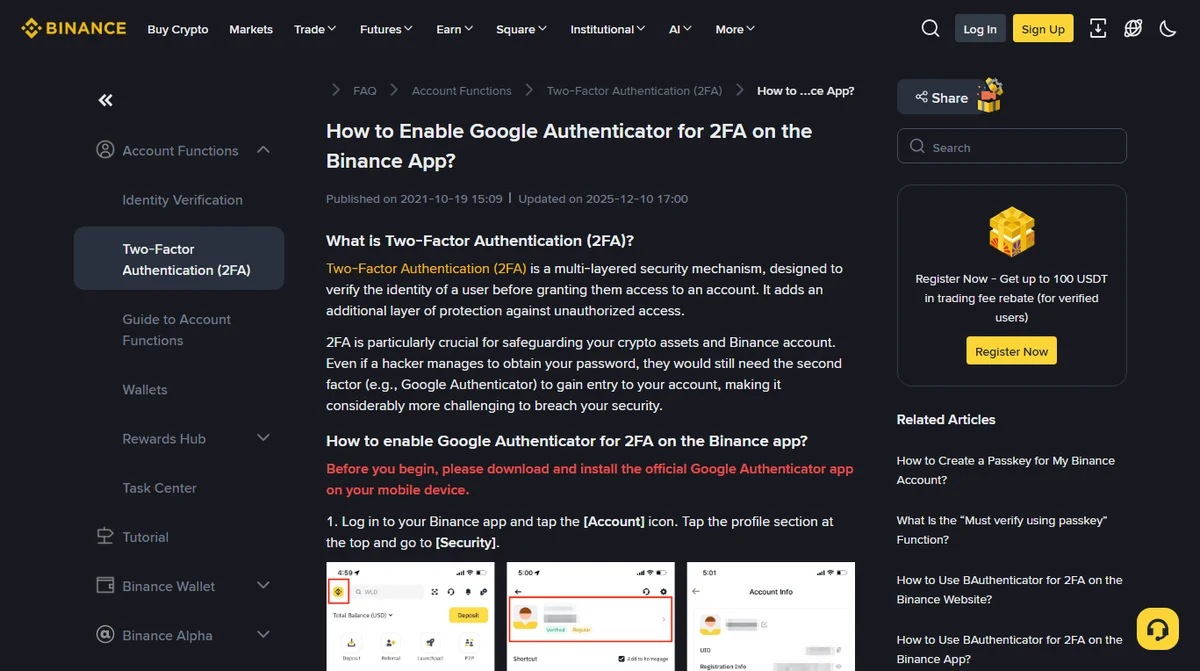
If you have several entries with similar names, label this one before leaving setup. “Binance — personal email” tells you more than “Account 2”. Never put the actual setup key in the label.
Make the backup useful without making it easy to steal#
A photo of the setup key in your normal camera roll creates two questions: will it survive losing this phone, and who else can open it? Cloud photo sync may solve the first while giving anyone with access to that cloud account a copy of the key.
A paper copy stored securely away from the phone can work. So can an encrypted password manager you know how to recover. Check the dependency: if opening the password manager requires a code available only on the missing phone, that backup may leave you stuck at another login screen. Keep paper readable and protected from damage; keep digital copies protected from other people.
Google account sync offers another recovery route for Authenticator entries. Protect the syncing account and retain an alternative way to sign in to it. An export QR code deserves the same care as a setup key. Neither belongs in a support chat, an email to a stranger, or a shared photo album.
The short code and the setup key do different jobs#
The setup key stays behind the scenes. Your authenticator combines it with the time to calculate a temporary code, which the exchange checks. The TOTP standard uses a default time step of 30 seconds. The six-digit code requested by Binance expires; saving one for later will not help you recover access.
Code generation works offline, provided the device clock is correct. Completing a login still needs a connection to the exchange and may require another security check. Installing the exchange app again restores neither a lost setup key nor an unsynced authenticator entry.
Moving to a new phone while the old one still works#
Keep the old phone intact until you have checked the new one. Start with whichever recovery material you actually have:
| Still available | Move the existing entry |
|---|---|
| The Google account used for Authenticator sync | Sign in to that account in Authenticator on the new phone and check that the entry appears. |
| The old phone, with working entries but no sync | Open Transfer codes, then Export codes on the old phone. On the new phone, choose Import codes and scan the export QR code. |
| A protected copy of the original setup key | Add it manually to the new authenticator as a time-based entry. |
Google explains these routes in its Authenticator help. When sync is enabled, deleting an entry also deletes it from other synced devices. Do not delete the entry on the old phone as a way of signing that phone out.
Test access using the new phone before following the phone manufacturer’s handover process to sign out and erase the old device. Moving an existing entry leaves the exchange’s setup key unchanged. New-device checks can still apply; a successful transfer gives no exemption from them.
When you need a new key at the exchange
If you can still complete the required security checks, Binance’s website lets you change the authenticator under the profile menu: open your account, go to Security, manage the authenticator and select its edit icon. Complete the existing verification, add the replacement key to your authenticator, then submit a fresh code. Binance describes the replacement as a QR code and a 16-digit code; keep it separate from the six-digit login code.
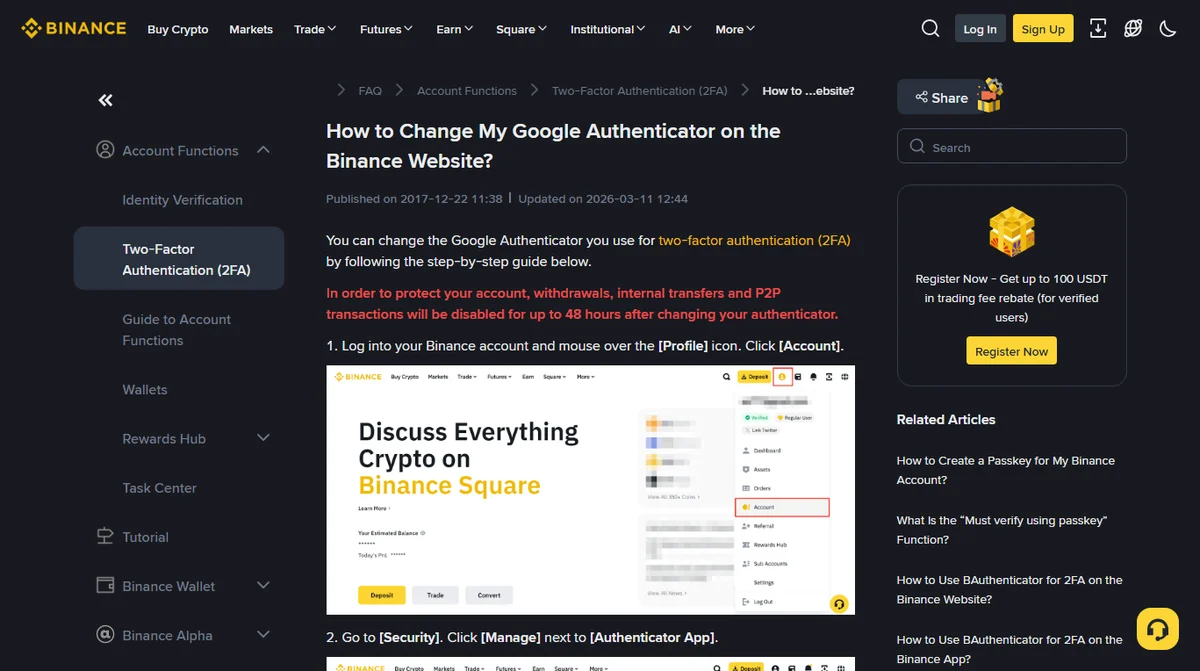
Binance says withdrawals, internal transfers and P2P transactions can be disabled for up to 48 hours after changing the authenticator. That rule was checked in September 2026. Moving an existing entry and changing the exchange’s key are different actions. Read the confirmation shown for your account.
If the key may have been exposed, deal with the security problem promptly. Keeping a compromised key merely to avoid a temporary restriction leaves the exposure in place.
After a successful key change, replace the old backup with the new one. If you cannot complete the existing verification at all, use the recovery route below instead of repeatedly starting the change flow.
Lost the phone and cannot recover an entry?#
First check for a synced entry or a stored setup key. Without either, begin at the official exchange login page. Binance’s lost-access recovery instructions describe the following route:
- Enter your email address or phone number. If a passkey prompt appears and you cannot use it, cancel the prompt and choose
My Passkeys Are Not Available. Then enter your password when asked. - At the security verification screen, select the method you cannot use and choose
Security verification unavailable?. - Mark every unavailable verification method, including email if you have also lost access to it. Read the reset notice and confirm.
- Complete the remaining checks and verify new contact details if requested. Submission means the application has been sent, rather than approved.
If you also forgot the password and cannot use any verification method, contact support through the official website. Approval waiting time and post-reset restrictions are separate: Binance’s September 2026 guidance lists up to 48 hours of restrictions on withdrawals, P2P selling, internal transfers and payment services after a reset.
For a stolen phone, recovery also needs to address the device someone else may be holding. From a trusted device, use the phone maker’s remote lock or erase service where available, and review access to email and the syncing account. Once you regain exchange access, review its devices and password. Restoring an entry on a replacement phone leaves any copy of the original key on the old phone untouched.
A private message offering an “urgent unlock” changes none of those steps. Do not send the sender a password, a current code or a setup key, and do not pay an unlock fee. Start any support conversation from the official help centre you opened yourself.
The entry exists, but its codes keep failing#
Check the account label first. A perfectly current code for a different exchange account still fails. If the countdown is about to end, wait for the next code before typing; avoid submitting one that expires while you switch apps.
Then check automatic date and time in the phone’s system settings. Google removed Authenticator’s separate time-correction setting from version 7.0; the app now uses operating-system time. Older instructions telling you to find that switch inside Authenticator will send you looking in the wrong place.
If the browser login still fails, Binance’s code-error troubleshooting page suggests a private window, clearing browser cache and cookies, and trying the app before a reset. Be prepared to sign in again after clearing cookies. Keep reset for a recovery problem you have actually identified, because it can trigger the restrictions above.
Waiting for an SMS is a different problem: use the missing verification code guide. An authenticator generates its own code without waiting for a text message.
Before leaving the security screen#
Should I finish this before adding money?
Yes: completing setup first gives you time to test access and find the backup while the account is still empty. An empty balance provides no exemption from restrictions after changing or resetting verification.
Can a spare device generate the same codes?
With the same key, algorithm and accurate time, it can. Protect that device too. Keeping another copy helps recovery but adds another place where the key needs protecting; the exchange may still request other checks when you log in.
Should I remove SMS verification now?
Review the methods your account accepts before removing anything. Different actions may require different checks. Keep usable recovery routes and protect the phone number and email attached to them; adding an authenticator alone tells you nothing about which other methods your exchange still requires.
Check the rest of the account before funding it
With the authenticator working and recovery information stored, return to the account-security stage of the first-purchase walkthrough.
Continue with account security →Help with the neighbouring steps
- Opening a Binance account The registration fields before security setup
- When a verification message never arrives Email and SMS delivery checks
- Identity verification before buying Documents and identity checks are a separate step
- Registration and identity checks All guides for this part of the purchase
Last updated: 28 September 2026. Public Binance and Google help pages linked beside the relevant instructions were checked for this English edition. Screenshots show public documentation, not a test of a signed-in account. Other exchanges use their own recovery rules.