Trading page
How to read a crypto spot trading page: the pair, the order book and the order form
A spot trading page crams six or seven panels onto one screen, and a first purchase needs only three of them: the trading pair in the top-left corner (which coin you get, which coin you pay with), the order book on the left (the red half is what you buy from) and the order form under the chart (kept on the Spot tab, with a price and an amount). The candlestick chart and the market list on the right can wait until later.
The walk-through follows Binance’s website, panel by panel, with a note in each section on where the same thing lives in the app. Other exchanges rename things and shuffle them around, yet every one of them has a pair, an order book and an order form.
What does BTC/USDT mean? Start with the pair in the top-left corner#
On the website, open Trade → Spot from the top menu; the app uses the same two words, Trade then Spot. The bold BTC/USDT in the corner is the trading pair.
The two halves of a pair do different jobs. Binance’s help centre calls the first one the base asset — the coin you are buying or selling — and the second the quote asset, the coin the price is written in. In practice: buy on BTC/USDT and you spend USDT to receive BTC.
That makes the question before choosing a pair a simple one: what is sitting in your account right now? Suppose your card purchase gave you USDT. Then BTC/USDT is the pair you want. Open BTC/USDC by mistake and the order form will show 0 USDC available. Both of Binance’s own walk-throughs happen to use BTC/USDC as their example, so copying them click for click is an easy way to land on the wrong one.
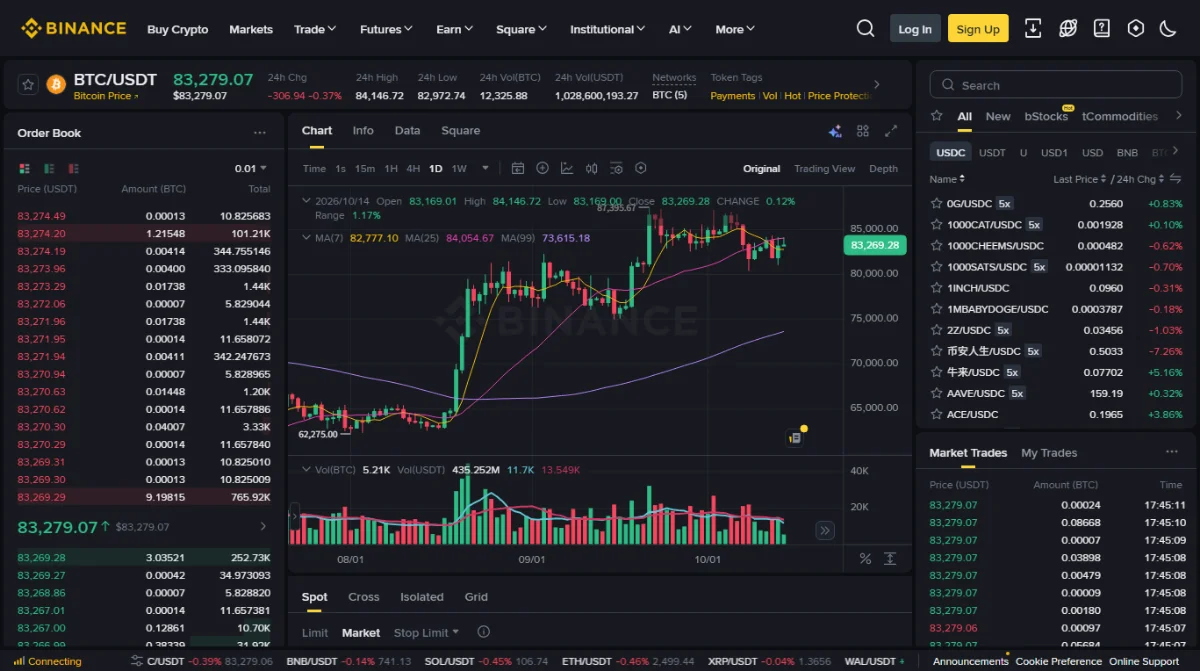
To switch pairs, use the search box and the list on the right. Above the list sits a row of quote-asset tabs; in the screenshot they read USDC, USDT, U, USD1, USD and BNB, with USDC selected. Before you click a row, read the coin after the slash.
Which number next to the pair is the price?#
The large figure right beside the pair is the last price: the price of the most recent trade. Your own order will not necessarily fill there.
Moving right you get 24h Chg, 24h High, 24h Low and two volume figures. Check the brackets on those last two. 24h Vol(BTC) counts bitcoin; 24h Vol(USDT) counts the dollar-pegged coin paid for it. They measure the same trading in different units, so comparing one against the other tells you nothing.
The percentage change is measured from a starting time you can move. Hover over the Settings icon and choose Change(%) & Chart Timezone; the help centre points out that this setting changes only the percentage, never the candlestick chart. When two people compare screenshots and their daily change disagrees, a different setting here may be the whole explanation.
Networks and Token Tags, further along the same row, have no bearing on whether this order goes through. Skip them for now.
How to read the order book: red sells on top, green buys below#
The Order Book panel lists every order still waiting to be filled, sorted by price. Its three columns are Price (USDT), Amount (BTC) and Total. Notice that the column headings repeat the lesson from the pair: price in the quote asset, amount in the base asset.
- Red, upper half: sell orders, bitcoin that other people are offering. Rows nearer the middle are cheaper.
- The large figure in the middle: the last price, the same number shown beside the pair.
- Green, lower half: buy orders, the prices other people are bidding. Rows nearer the middle are the highest bids.
When you are buying, the rows that matter are the red ones closest to the middle. They show the cheapest price anyone will sell to you right now, and how much is on offer at each level. In the screenshot the lowest ask was 83,269.29 and the highest bid 83,269.28, one cent apart. On a busy pair such as bitcoin against USDT the two sides usually sit that close. On a thinly traded pair the gap can be wide, and a market order there pays for it.
The 0.01 drop-down above the book sets how finely prices are grouped; 0.01 shows two decimal places. Coarser settings look tidier and hide detail. One feature deserves care: with Quick Switch Buy/Sell turned on, clicking a price in the red area flips the form to the buy side and fills that price in. Binance’s order book page adds that someone else may take that price before you submit.
If the book reached your price and your order still sat there, Limit order not filled? walks through why.
The candlestick chart can wait#
Above the chart, Time, 1s, 15m, 1H, 1D and the rest set how long each candle covers. On the right, Original, Trading View and Depth switch the style of display. All of it shows how the price got here. None of it places an order.
You can buy bitcoin without knowing what a red candle or a long wick means. When you want the vocabulary, the glossary covers candlesticks, market cap and 24h change.
Where is the buy button? Check four things in the order form#
On the website the order form sits under the chart, so scroll down a little to reach it. In the app, Trade → Spot opens straight onto it. Go through these before you submit:
-
The tab says Spot
Next to it are
Cross,IsolatedandGrid. The help centre lists the first two as Cross Margin and Isolated Margin: trading with borrowed money, which has no place in a first purchase. Grid is an automated trading bot. -
Pick the order type
The screenshot shows
Limit,MarketandStop Limit. Binance says limit is the default on both website and app, and suggests market when you want the order filled as soon as possible. How the two behave, and which to try first, is in Market or limit order. -
Enter the amount, then look at the percentage bar
The bar under
Amountsets what share of your balance goes into the order; on the website the help page describes it as a percentage of your Spot Account balance. Dragging it to the end commits everything available, so read the converted total before you let go. -
Read the Avbl line, then press Buy BTC
By default, Binance says, the money may come from your Spot, Funding and Earn accounts, and clicking
Avbllets you choose which. If you know the money is there but the form says it is not enough, it may be sitting in another account; Funding account vs spot account shows how to check and move it.
Click the Settings icon on the trading page and switch on Order Confirmation for the order types you want double-checked. Every order of that type then opens a pop-up you must clear with Continue, which is one more look at price and amount. Far less trouble than reading whether a purchase can be undone afterwards.
After you press Buy: the tabs at the bottom and the trade list on the right#
Under the order form runs a row of record tabs: open orders, order history, trade history and funds, plus grid orders. A limit order that has not filled stays under open orders. Once it fills, it appears in trade history. What each tab holds and which column carries the fee is set out in How to check your crypto trade history and fees.
Market Trades and My Trades, on the right-hand side, get mixed up easily. Market Trades is the running tape of everybody’s trades on this pair and scrolls past fast. My Trades holds only yours. Spotting a line in Market Trades with roughly your amount proves nothing about your order.
When the trade is done, confirm it on the assets page. If the coin seems missing, or the quantity is a touch below your sum, see Bought bitcoin but cannot find it?
Related
- Market or limit order: which first The second choice in the order form
- Funding account vs spot account When Avbl shows 0
- Bitcoin buying fees: the three layers Why you received slightly less
- Limit order not filled An order stuck under open orders
- Glossary Candlesticks, market cap, maker and taker
Last updated: 14 October 2026. Panel names, the pair definitions and the order form steps come from three Binance help pages, all opened in English on 14 October 2026: How to Spot Trade on Binance Website? (marked updated 2026-08-14), How to Spot Trade on the Binance App? (updated 2026-03-17) and Understanding Order Book and Market Depth (updated 2025-12-09). The trading page is redesigned from time to time, so tab names and positions may drift away from the screenshot. This guide explains what is on the page; which coin to buy, and at what price, is left to you.